Showing posts with label google docs. Show all posts
Showing posts with label google docs. Show all posts
Thursday, June 2, 2011
Share your Google Docs product ideas with our team
(Cross-posted from the Google Docs Blog.)
You make Google products what they are -- and the feedback you share with us every day helps shape the future of our products. We’re always listening to your requests via blogs, Twitter, our forum, and other channels, and for the next two weeks, we’re bringing back a more structured way to get your input on Google Docs by opening up our Product Ideas page.
On this page, you can submit your ideas, read other users’ suggestions, and vote up your favorites. We’ll use the top ideas to help us prioritize our development in the coming months. After the two-week period, we'll follow up with a blog post summarizing the results. While we may not work on all of the top ideas immediately, we’ll let you know which of the ideas we’re working on.
We hope you’ll use this as an opportunity to help us prioritize the Google Docs features which are important to you -- for your business, in the classroom, or at home. Start submitting your ideas, big or small -- we look forward to hearing what you have to say!
Editors note: We’re specifically looking to hear your Google Docs product ideas and suggestions. If you’re seeking help, please post your support questions to the Help Forum. Off topic submissions may be removed.
Tuesday, May 17, 2011
Pivot Tables now in Google spreadsheets
Over the past few months, we’ve released a string of new features in Google Docs to give your business more tools for collaborative document editing and data analysis. From simpler file uploads to discussions and mobile editing in documents, we’re making it easier for you and your colleagues to work together on the web. Continuing with this effort, we’re launching pivot tables in Google spreadsheets, which will be rolled out to all Rapid Release users over the next 24 hours.
With pivot tables, you can quickly narrow down large data sets to get high level insights. Say you run a retail chain and you have thousands of rows of sales data broken down by purchase. It could be helpful for you and your sales manager to view the total annual revenue for each region without having to enter multiple formulas. In a matter of seconds, you can create a pivot table and summarize all of your data according to the factors you specify, all while collaborating with your sales manager on the spreadsheet.
To see how pivot tables work in Google spreadsheets, check out this video:
We hope pivot tables in Google spreadsheets will help you save time analyzing your data. For more details on using pivot tables, take a look at our post on the Google Docs Blog.
Thursday, April 28, 2011
Simpler file upload in Google Docs
(Extended post on the Google Docs Blog.)
Starting today, Rapid Release users now have access to these handy new features in Google Docs: folder upload, documents list integration, and drag-and-drop upload.

Folder upload is now accessible via the new Upload menu in the latest versions of Chrome, Firefox and Safari. We’ve also merged the upload page’s functionality into the documents list to create a much better upload experience. When you upload files via the new drop-down menu, a window will pop up in the bottom right of your documents list and show upload progress. Lastly, if you are using Chrome, Safari and Firefox on your Mac or PC, you’ll also be able to drag-and-drop one or more files directly into your documents list to initiate an upload.
For more details about today’s changes to uploading files, check out our extended post on the Google Docs Blog or take a look at our FAQs.
Starting today, Rapid Release users now have access to these handy new features in Google Docs: folder upload, documents list integration, and drag-and-drop upload.

Folder upload is now accessible via the new Upload menu in the latest versions of Chrome, Firefox and Safari. We’ve also merged the upload page’s functionality into the documents list to create a much better upload experience. When you upload files via the new drop-down menu, a window will pop up in the bottom right of your documents list and show upload progress. Lastly, if you are using Chrome, Safari and Firefox on your Mac or PC, you’ll also be able to drag-and-drop one or more files directly into your documents list to initiate an upload.
For more details about today’s changes to uploading files, check out our extended post on the Google Docs Blog or take a look at our FAQs.
Update: This is now rolled out to everyone.
Tuesday, April 12, 2011
Pagination comes to Google Docs
(Cross-posted on the Official Google Blog and Google Docs Blog)
Exactly one year ago, we launched a new version of the Google document editor, created from the ground up to take advantage of the latest capabilities in modern web browsers like Chrome. In particular, we baked in a way of supporting text features that aren’t natively included with browsers—for example, we added a ruler for controlling the margins, text that wraps around images to create eye-catching docs and discussions for a more collaborative editing experience.
Today, we’re doing another first for web browsers by adding a classic word processing feature—pagination, the ability to see visual pages on your screen. We’re also using pagination and some of Chrome’s capabilities to improve how printing works in Google Docs. Pagination is rolling out now and should be available to everyone by the end of the day.

Pagination adds visual page breaks while you’re editing your documents, so now you can see how many pages of that report you’ve actually finished. Because we’re able to show you individual pages, we can improve the way other features work too: headers now show up at the top of each page instead of just at the top of your doc, manual page breaks actually move text onto a new page and footnotes appear at the bottom of the pages themselves.

If you prefer editing documents with a continuous layout, you can hide page breaks by selecting the “Compact” document view from the “View” menu.

Pagination also changes what’s possible with printing in modern browsers. We’ve worked closely with the Chrome team to implement a recent web standard so we can support a feature called native printing. Before, if you wanted to print your document we’d need to first convert it into a PDF, which you would then need to open and print yourself. With native printing, you can print directly from your browser and the printed document will always exactly match what you see on your screen.
For now, native printing is only available in Google Chrome, but we’re hoping other browsers will implement the same web standard so everyone can have the best possible printing experience with Docs.
Pagination and native printing are great examples of how modern browsers are making it possible to take the best parts of the desktop experience and bring them online. Please share your feedback on the Google Docs forum.
Exactly one year ago, we launched a new version of the Google document editor, created from the ground up to take advantage of the latest capabilities in modern web browsers like Chrome. In particular, we baked in a way of supporting text features that aren’t natively included with browsers—for example, we added a ruler for controlling the margins, text that wraps around images to create eye-catching docs and discussions for a more collaborative editing experience.
Today, we’re doing another first for web browsers by adding a classic word processing feature—pagination, the ability to see visual pages on your screen. We’re also using pagination and some of Chrome’s capabilities to improve how printing works in Google Docs. Pagination is rolling out now and should be available to everyone by the end of the day.

Pagination adds visual page breaks while you’re editing your documents, so now you can see how many pages of that report you’ve actually finished. Because we’re able to show you individual pages, we can improve the way other features work too: headers now show up at the top of each page instead of just at the top of your doc, manual page breaks actually move text onto a new page and footnotes appear at the bottom of the pages themselves.

If you prefer editing documents with a continuous layout, you can hide page breaks by selecting the “Compact” document view from the “View” menu.

Pagination also changes what’s possible with printing in modern browsers. We’ve worked closely with the Chrome team to implement a recent web standard so we can support a feature called native printing. Before, if you wanted to print your document we’d need to first convert it into a PDF, which you would then need to open and print yourself. With native printing, you can print directly from your browser and the printed document will always exactly match what you see on your screen.
For now, native printing is only available in Google Chrome, but we’re hoping other browsers will implement the same web standard so everyone can have the best possible printing experience with Docs.
Pagination and native printing are great examples of how modern browsers are making it possible to take the best parts of the desktop experience and bring them online. Please share your feedback on the Google Docs forum.
Thursday, March 31, 2011
A recap of new Google Docs functionality for your business
As we near the end of the March, we want to highlight some of the many recent updates made to Google Docs. You’ve already heard about Discussions in Google Docs, which introduced a better way to provide document feedback. Here are some of the other features that have been released in Google Docs over the past couple months:




- Filter your data in spreadsheets: We made it easier to analyze and view your data with the addition of filtering in Google spreadsheets. Applying a filter to a set of data can help you quickly narrow down the data set to find the data you need. By selecting a data set, you can filter and sort amongst many rows at once.

- 12 new file formats in the Google Docs Viewer: The Google Docs Viewer is used by millions of people every day to quickly view PDFs, Microsoft Word documents and PowerPoint presentations online. Not only is viewing files in your browser far more secure than downloading and opening them locally, but it also saves time and doesn’t clutter up your hard-drive with unwanted files. We recently added support for:
- Microsoft Excel (.XLS and .XLSX)
- Microsoft PowerPoint 2007 / 2010 (.PPTX)
- Apple Pages (.PAGES)
- Adobe Illustrator (.AI)
- Adobe Photoshop (.PSD)
- Autodesk AutoCad (.DXF)
- Scalable Vector Graphics (.SVG)
- PostScript (.EPS, .PS)
- TrueType (.TTF)
- XML Paper Specification (.XPS)
- Microsoft Excel (.XLS and .XLSX)
- Mobile editing in 45 languages: Last year, we launched mobile editing in English in Google documents. You can now edit your documents on the go in 45 languages on Android with Froyo (version 2.2) and on iOS devices (version 3.0+) including the iPad.

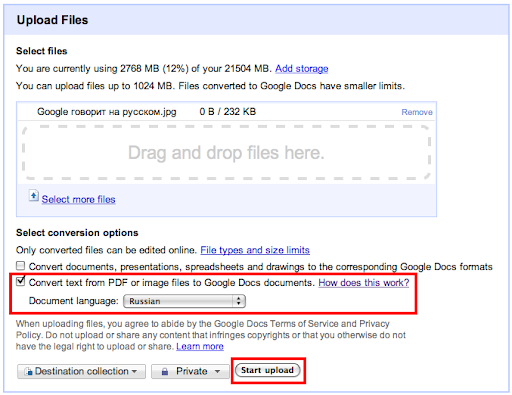
- Optical Character Recognition (OCR) in 34 languages: Last June, we introduced the ability to upload documents into Google Docs using Optical Character Recognition (OCR). We’ve now added support for 29 additional character sets, including those used in most European languages, Russian, Chinese Simplified and some other Asian languages. See the upload page for the full list.

- Multiple chart ranges and hidden sheets in Spreadsheets: We added the ability to chart multiple ranges and hide sheets in Google spreadsheets. In charts, you can now add extra ranges by clicking on “Select ranges...” and “add another range.” You can also manually add new ranges separated by commas. In addition, we introduced the ability to hide your sheets. You can now click on a sheet tab and select “hide sheet” to remove a sheet from view.
- Revisions, presence, and format painter in Drawings: We’re making it easier to work together in drawings. First, we’ve added presence highlights around shapes so you can keep track of which object each person is editing. Second, we added revision history which lets you see who made which change as well as go back to previous versions. Third, the new format painter lets you choose a source shape, press the format painter icon to copy its formatting, and then click on another shape to apply that formatting to the destination shape.

- Google Cloud Connect for Microsoft Office: Google Cloud Connect is now available in 39 languages. We’ve also added the ability to hide the toolbar.
- Hidden gridlines in Google spreadsheets: Under the View menu, you can Hide gridlines for each sheet, leaving only the borders that have been put there.

- Quick starring and improved sharing invitations: Now you can star documents while editing them. Once a doc is starred, you’ll be able to find the doc by clicking on the starred link in your document list. We’ve also updated document sharing so that when you share a doc with others, all new collaborators are now included on the email.
- Cloud printing on the go: now you can print from your smartphone with Google Cloud Print for mobile documents and Gmail for mobile. Just open a document in Google Docs or an email in Gmail in your mobile browser and choose “Print” from the dropdown menu in the top right corner. To get started, you’ll need to connect your printer to Google Cloud Print.
Friday, February 25, 2011
Guest Post: Google Docs for Classroom Instruction
[cross-posted from the Google Docs blog]
Guest Post: Philip Greenspun is a pioneer in developing online communities and an educator who has taught electrical engineering and computer science courses at the Massachusetts Institute of Technology since 1987.Today he explains how he used Google Docs to develop and distribute curricular materials and to support in-classroom discussion of student solutions.
In 1983, I began building applications to support multi-user collaboration over the Internet. When I began using the World Wide Web in 1993 I vowed never to write a native application program again and said "every desktop computer program going forward should simply run in a Web browser." Since the main reason to prepare a document was for others to view, I predicted that everyone would be using browser-based word processors and spreadsheet programs by the year 2000. I am still waiting for my "everyone goes to work in a flying car" prediction to come true also...
In January 2011, four of us were developing an entirely new course for MIT students, an intensive lab-based SQL programming and Android development class. All of us are proficient Web developers accustomed to authoring pages in standard text editors and publishing them on our own servers, but it turned out to be easier and more effective to use Google Docs to collaboratively develop course materials. Google Docs was more effective because simultaneous updates could proceed in different areas of a document and we weren't slowed down by having to do explicit check-ins with a standard version control system (or circulate drafts with names such as "DayOneProblems-final-version-by-philg-really-really-final"). Also, the "insert a comment" feature of Google Docs proved useful, e.g., when I wasn't sure if an example program was correct and wanted to ask a collaborator to check, but without leaving crud in the main body of the document.
We created two Google Docs folders the night before class: lessons, editable by us and view-only for students; workspace, editable by everyone. Into the "lessons" folder we moved the first day's assignment. In the "workspace" folder we created a "Day 1 Workspace" document intended for students to cut and paste code into. As each student walked into the classroom, we asked him or her to email a teacher from his or her Google Account (most students already had Gmail and some experience with Google Docs) and the teacher would share both folders with the new student, immediately enabling access to all lessons.
As the course materials had never been used before, they contained some errors and many sections that lacked sufficient hints or explanations. When we noticed these deficiencies, e.g., when a student asked a question, we would edit the problem set from a teacher's laptop and all students would immediately see the change on the projector and/or on their own screens.
Google Docs enabled us to distribute solutions incrementally. The first morning we created a "Day 1 Solutions (January 2011)" document and dragged it into the lessons (view-only for students) folder. As the day progressed, when 90 percent of the students were done with a problem, we would add the solution to the end of this document (by copying from another Google Doc, of course) so that students would have it in front of them and be prepared for the discussion.
The shared Google Docs workspace documents enabled us to have students paste their work into shared documents that could be used for projection and discussion and also for members of the class to try out each other's SQL queries.
To gather feedback at the end of the course, we simply created a feedback document and put it into the workspace folder, then used the "email editors/viewers" feature (from the Share menu) to ask students to add their thoughts, including whether they liked Google Docs ("great for sharing solutions"; "very effective"; "Generally yes, I did get a little confused with all the browser tabs I had open"; "very efficient and comfortable"; "green too").
We were technical people teaching a technical course, but everything that we did with Google Docs would have been easy for a person without any programming or HTML authoring background. Google Docs was an important asset for our course and significantly enhanced the in-classroom experience.
You can read more about our experience, including our wishlist, at http://philip.greenspun.com/teaching/using-google-docs-for-classroom-instruction
Monday, February 14, 2011
SAP StreamWork and Google Docs integration help Manna on Main Street support the community
Editor's Note: This is a guest blog post from Tom Allebach, Executive Director for Manna on Main Street, a community service organization that serves the needy in the greater North Penn community outside of Philadelphia, Pennsylvania (USA).
Manna on Main Street was founded in 1981 and provides a soup kitchen, food cupboard, and a variety of other programs to help individuals in need. Our vision for Manna on Main Street is "that everyone might be fed." As we need to have every dollar possible directed to helping people, software to support our organization needs to be affordable, work with our existing applications, and be easy to access and use for our staff and 1000 volunteers.
Two solutions that have changed the way we work with our volunteers are Google Docs for creation and sharing of documents, spreadsheets, and presentations, and SAP StreamWork, a collaborative decision making application available from the Google Apps Marketplace. They have access whether they're in a soup kitchen, the office, home, or on the go. These tools have helped Manna on Main Street to work more efficiently and collectively, thus allowing us to create and deliver more programs to help those in need.
After experiencing the value of Google Docs, we learned about the integrations with SAP StreamWork through the Google Apps Marketplace. With SAP StreamWork, we can apply structure to our discussions including tracking activities, pro/con tables, SWOT analyses, send out e-mail alerts and polls to drive fast, meaningful results. It provides a way for our staff to connect with the board of directors and supporters for key committees, and has many features for managing private, directed activities that drive participation, planning, and decisions with our volunteers. Like Google Docs, it’s easy to use and has been adopted by participants with varying levels of technology experience.
Google Docs is integrated directly into SAP StreamWork, making it even easier for Manna on Main Street and its volunteers to work seamlessly, collectively, and from anywhere. With these new capabilities our board of directors and building and resource committees are now driving a fundraising program to help Manna move to a new facility, dramatically increasing our ability to feed and serve more people in need.
We realize that much work remains to be done to continue to serve those in need, and we continue to give thanks to all of you who help in that service. We also thank Google and SAP for helping small organizations with big goals such as ours.
Posted by Tom Allebach, Executive Director for Manna on Main Street
Manna on Main Street was founded in 1981 and provides a soup kitchen, food cupboard, and a variety of other programs to help individuals in need. Our vision for Manna on Main Street is "that everyone might be fed." As we need to have every dollar possible directed to helping people, software to support our organization needs to be affordable, work with our existing applications, and be easy to access and use for our staff and 1000 volunteers.
Two solutions that have changed the way we work with our volunteers are Google Docs for creation and sharing of documents, spreadsheets, and presentations, and SAP StreamWork, a collaborative decision making application available from the Google Apps Marketplace. They have access whether they're in a soup kitchen, the office, home, or on the go. These tools have helped Manna on Main Street to work more efficiently and collectively, thus allowing us to create and deliver more programs to help those in need.
After experiencing the value of Google Docs, we learned about the integrations with SAP StreamWork through the Google Apps Marketplace. With SAP StreamWork, we can apply structure to our discussions including tracking activities, pro/con tables, SWOT analyses, send out e-mail alerts and polls to drive fast, meaningful results. It provides a way for our staff to connect with the board of directors and supporters for key committees, and has many features for managing private, directed activities that drive participation, planning, and decisions with our volunteers. Like Google Docs, it’s easy to use and has been adopted by participants with varying levels of technology experience.
Google Docs is integrated directly into SAP StreamWork, making it even easier for Manna on Main Street and its volunteers to work seamlessly, collectively, and from anywhere. With these new capabilities our board of directors and building and resource committees are now driving a fundraising program to help Manna move to a new facility, dramatically increasing our ability to feed and serve more people in need.
We realize that much work remains to be done to continue to serve those in need, and we continue to give thanks to all of you who help in that service. We also thank Google and SAP for helping small organizations with big goals such as ours.
Posted by Tom Allebach, Executive Director for Manna on Main Street
Monday, January 31, 2011
A Google Docs documents list refresh
Files stored 100% on the web can be accessed from any computer or device and shared with co-workers with ease. Over the past year, many of you have been taking advantage of the ability to upload any file to Google Docs. With more files and a variety of file types in one place, organizing and quickly being able to find what you need becomes even more important. As a result, we’re happy to announce that, over the next couple of days, we’ll be rolling out a refresh to the documents list, aimed to make it easier to find, explore and share all your files. We’re also rolling out big improvements to our back-end systems to make your experience in the documents list faster and smoother.
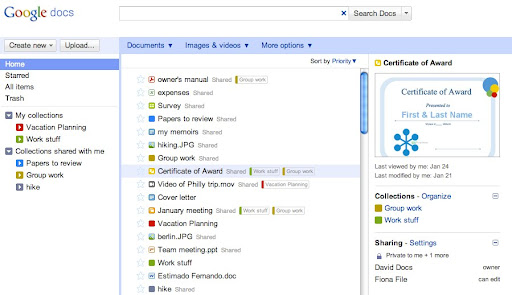
Google Apps for Business customers who have the “Enable pre-release features” option selected in the control panel, and customers of all other editions will start seeing the new interface within a few days. Google Apps for Business customers without the “pre-release features” option selected won’t see this improvement for a few more weeks. More details can be found on the Google Docs blog.

Google Apps for Business customers who have the “Enable pre-release features” option selected in the control panel, and customers of all other editions will start seeing the new interface within a few days. Google Apps for Business customers without the “pre-release features” option selected won’t see this improvement for a few more weeks. More details can be found on the Google Docs blog.
Wednesday, November 17, 2010
Editing your Google Docs on the go
Cross posted on the Official Google Blog, Google Docs Blog and the Google Mobile Blog
With Google Docs, we’re always trying to make you more productive—and part of that means making it possible for you to get things done from anywhere, at anytime. That’s why we’re excited that the new documents editor now supports editing on your mobile browser. We’re rolling this out over the next few days.
That means that...
It’s easy to get started: visit docs.google.com in a browser on a supported device, and select the document you want to edit. Then, when you’re viewing it, press the Edit button to switch to the mobile editor.

 In the next few days, we’re rolling this out to English-language users around the world on Android with Froyo (version 2.2) and on iOS devices (version 3.0+) including the iPad. We’ll be adding support for other languages soon. And as before, we also support editing of spreadsheets from your mobile device’s browser.
We hope you enjoy editing your documents on the go—especially when you’re at the game with a hot dog in your other hand.
With Google Docs, we’re always trying to make you more productive—and part of that means making it possible for you to get things done from anywhere, at anytime. That’s why we’re excited that the new documents editor now supports editing on your mobile browser. We’re rolling this out over the next few days.
That means that...
- You can work on that important memo...while on the bus or train to work.
- If you’re behind on a group proposal, but really want to make it to the ball game tonight, your whole team can work on it from the bleacher seats.
- You can put the finishing touches on your big proposal while waiting to be met in your client's lobby.
- ...and the list goes on!
It’s easy to get started: visit docs.google.com in a browser on a supported device, and select the document you want to edit. Then, when you’re viewing it, press the Edit button to switch to the mobile editor.


We hope you enjoy editing your documents on the go—especially when you’re at the game with a hot dog in your other hand.
Wednesday, November 3, 2010
Writing a campaign speech with Google Docs
[With our recent announcement about the more than 10 million students, faculty, staff and alumni who have "gone Google" we thought it would be fun to share this post from the Google Docs blog]
A few months ago, my colleague Julia and I were at a technology conference for educators. Teachers were very enthusiastic when we demonstrated working together on documents at the same time and were really excited about how they could use it in their classrooms. What surprised us though, was how many of our favorite features - like working together at the same time - were brand new to them.
We knew we wanted to share that same excitement with even more people. Inspired by the Search Stories videos, we set off to tell a story using Google Docs. The result is this video:
We hope you enjoy seeing some of the cool features Google Docs offers in action. And if you think your friends would like it, show it to them too!
A few months ago, my colleague Julia and I were at a technology conference for educators. Teachers were very enthusiastic when we demonstrated working together on documents at the same time and were really excited about how they could use it in their classrooms. What surprised us though, was how many of our favorite features - like working together at the same time - were brand new to them.
We knew we wanted to share that same excitement with even more people. Inspired by the Search Stories videos, we set off to tell a story using Google Docs. The result is this video:
We hope you enjoy seeing some of the cool features Google Docs offers in action. And if you think your friends would like it, show it to them too!
Sunday, October 17, 2010
The new Google Search Appliance - a bridge to the cloud
In the last year, businesses have started using cloud-based applications from Google and other technology providers at an accelerated rate. While many organizations still have information that resides in on-premise systems, more and more important business information today is living in the cloud, in collaborative tools like Google Apps—now used by more than 3 million businesses — and services like Twitter. Starting today, Cloud Connect for the Google Search Appliance lets workers search across both on-premise and cloud-based content from a single search box, delivering more comprehensive results and improving productivity. We’ve also added a few other handy features that make it easier to collaborate and find information faster.
Cloud Connect for the Google Search Appliance
Cloud Connect displays relevant, personalized results from Google Docs and Google Sites alongside results from more traditional repositories, like file shares and content management systems. Easier access to collaborative documents, spreadsheets, presentations and sites with Cloud Connect speeds up how quickly coworkers can complete projects. Cloud Connect also lets users search content from Twitter, as well as blogs and industry websites via Google Site Search.
For organizations such as Delta Hotels and Avago that have already deployed both Google Apps and the Google Search Appliance, the new Cloud Connect feature brings “universal search” to another level, with more accessible business systems and content now spanning from cloud to ground.
 People Search
This new version also helps foster faster collaboration between employees with the addition of People Search, which makes it easy to find experts and contact coworkers who are related to a search query, right from the search results page. For example, a search for “field marketing” would return a list of field marketing team members alongside other relevant content. Organizations can index personnel information like department, interests, expertise and location, and there’s an LDAP connector to help get People Search up and running quickly.
Dynamic Navigation and more
Our new Dynamic Navigation feature allows users to drill down into search results based on search modifiers for their queries, and Active-Active Mirroring improves reliability by spreading search traffic across multiple boxes. Dynamic Navigation was a top user request and we’re glad to be able to add it. In addition, the Search Appliance now supports Microsoft Sharepoint 2010 content out of the box without the need for additional connectors.
As you move your business to the cloud, the Google Search Appliance’s new features can be an important bridge between on-premise and cloud-based systems, while enhancing employee collaboration. You can learn more about this latest release at www.google.com/gsa.
Posted by Rajat Mukherjee, Group Product Manager, Enterprise Search
Cloud Connect for the Google Search Appliance
Cloud Connect displays relevant, personalized results from Google Docs and Google Sites alongside results from more traditional repositories, like file shares and content management systems. Easier access to collaborative documents, spreadsheets, presentations and sites with Cloud Connect speeds up how quickly coworkers can complete projects. Cloud Connect also lets users search content from Twitter, as well as blogs and industry websites via Google Site Search.
For organizations such as Delta Hotels and Avago that have already deployed both Google Apps and the Google Search Appliance, the new Cloud Connect feature brings “universal search” to another level, with more accessible business systems and content now spanning from cloud to ground.
 People Search
This new version also helps foster faster collaboration between employees with the addition of People Search, which makes it easy to find experts and contact coworkers who are related to a search query, right from the search results page. For example, a search for “field marketing” would return a list of field marketing team members alongside other relevant content. Organizations can index personnel information like department, interests, expertise and location, and there’s an LDAP connector to help get People Search up and running quickly.
Dynamic Navigation and more
Our new Dynamic Navigation feature allows users to drill down into search results based on search modifiers for their queries, and Active-Active Mirroring improves reliability by spreading search traffic across multiple boxes. Dynamic Navigation was a top user request and we’re glad to be able to add it. In addition, the Search Appliance now supports Microsoft Sharepoint 2010 content out of the box without the need for additional connectors.
As you move your business to the cloud, the Google Search Appliance’s new features can be an important bridge between on-premise and cloud-based systems, while enhancing employee collaboration. You can learn more about this latest release at www.google.com/gsa.
Posted by Rajat Mukherjee, Group Product Manager, Enterprise Search
Thursday, August 19, 2010
New features in Google Docs and Google Sites
Google’s multi-tenant infrastructure allows us to launch new features to our customers seamlessly, and with over 50 launches in first half of this year alone, the pace of innovation in Google Apps continues to accelerate.
Today we keep up the innovation with several new updates in Google Sites and Google Docs. We’ve improved Google Sites with several highly-requested features including horizontal navigation, global footers, and a new section for deleted items.
Horizontal navigation enables site owners to easily add links across the top of their sites.

Site owners can also add a global footer that displays across all pages on a site, and we added a new section for deleted items in sites, making it easier to get to deleted pages and attachments.
We’ve also added quick links to open Google Docs that are embedded in a site, making it easier for collaborators to open embedded documents.

For more information on these new features in Google Sites, check out the Google Docs blog.
In addition to these updates to Google Sites, this week we also launched several improvements in Google Docs:


As with all updates on Google Apps, users can get new features just by refreshing their browsers, and improvements roll out to customers with no need for administrators to manage patches or install software.
Stay tuned for more updates to Google Docs and Google Sites.
Today we keep up the innovation with several new updates in Google Sites and Google Docs. We’ve improved Google Sites with several highly-requested features including horizontal navigation, global footers, and a new section for deleted items.
Horizontal navigation enables site owners to easily add links across the top of their sites.
Site owners can also add a global footer that displays across all pages on a site, and we added a new section for deleted items in sites, making it easier to get to deleted pages and attachments.
We’ve also added quick links to open Google Docs that are embedded in a site, making it easier for collaborators to open embedded documents.

For more information on these new features in Google Sites, check out the Google Docs blog.
In addition to these updates to Google Sites, this week we also launched several improvements in Google Docs:
- Typing links just got a little faster in Google documents. Now when you type something that we recognize as a web address, it will automatically become a link.
- We’ve also added a few more page sizes for your documents. So if you’ve been craving an Executive sized page (7.25” x 10.5”), you’re in luck. For more information on autolinks and page sizes, head to the Google Docs blog.
- Correct spelling is an essential part of document creation, and to that end we’ve added spellcheck to Google spreadsheets. For more information on spelling checker in spreadsheets, visit the Google Docs blog.
As with all updates on Google Apps, users can get new features just by refreshing their browsers, and improvements roll out to customers with no need for administrators to manage patches or install software.
Stay tuned for more updates to Google Docs and Google Sites.
Monday, August 9, 2010
Freedom in Forms: Allow people to edit their submitted responses in Google Forms
I'm a big fan of Google forms because they allow me to quickly gather information from many people without clogging up my inbox. Whether it's a quick poll to a handful of coworkers or an in-depth company-wide survey, forms allow me to efficiently collect, organize, and store structured data without disrupting my email experience. Unless, of course, a user makes a mistake or changes his mind after submitting his response form. Those of you who regularly use online surveys know what happens next: emails begin to appear in your inbox asking you to manually update responses, defeating your attempts at efficiency. I’m happy to announce new functionality in Google forms available to businesses, schools, and organizations using Google Apps that solves this problem by allowing users to edit their own responses.
Now, when you create a form, you will see the option to allow users to edit responses.

Users choosing to edit submitted responses will see their previous answers and be able to make edits, which will automatically be reflected in your spreadsheet and in the summary of responses.
Whether you're ordering T-shirts for your team or planning a company-wide off-site, you no longer need to deal with shirt size or RSVP change requests in your inbox. By making it easy for users to edit their own responses, you can enhance the accuracy of your results while eliminating the need for manual updates.
Users can edit their responses from the link in the form submission confirmation page or from the email confirmation, if one is sent. For more information, please see our Help Center documentation.
Update 10/12: We've found a bug that affects the "Edit your response" feature in Google Forms, so we'll be turning it off until it's fixed. Sorry for any inconvenience, we'll keep you posted.
Now, when you create a form, you will see the option to allow users to edit responses.

Users choosing to edit submitted responses will see their previous answers and be able to make edits, which will automatically be reflected in your spreadsheet and in the summary of responses.
Whether you're ordering T-shirts for your team or planning a company-wide off-site, you no longer need to deal with shirt size or RSVP change requests in your inbox. By making it easy for users to edit their own responses, you can enhance the accuracy of your results while eliminating the need for manual updates.
Users can edit their responses from the link in the form submission confirmation page or from the email confirmation, if one is sent. For more information, please see our Help Center documentation.
Update 10/12: We've found a bug that affects the "Edit your response" feature in Google Forms, so we'll be turning it off until it's fixed. Sorry for any inconvenience, we'll keep you posted.
Thursday, May 27, 2010
Free Range Studios: Helping progressive organizations, one doc at a time
Editor's Note:This is the fourth post in a series celebrating National Small Business Week. Previous posts highlighted small businesses (Revenue Spark and Smart Furniture) that have adopted Google Apps and tips for using Gmail at work. Today, we’ll look at how Google Docs is helping a small business manage its extensive project portfolio and internal operations.
Free Range Studios is a creative agency that has helped hundreds of progressive organizations communicate their messages around social change. If you ask the team, divided between offices in Washington, D.C. and Berkeley, California, Free Range is “Creativity with a Conscience.” This applies to the types of stories they tell and how they tell them, whether it’s through an eco-friendly print ad or a web movie.
At any given time, Free Range is managing projects for multiple non-profits and socially responsible companies. For a small business to create at this scale, collaboration is key. Google Docs is helping Free Range be more nimble, work more efficiently, and remove location barriers.
Free Range switched to Google Apps in 2007; at about the same time, they began to change their approach to staffing projects from office-based to project-based. A single project can now have contributors from either office, in addition to freelancers or clients who can potentially be located anywhere. With real-time collaboration in Google Docs, all these groups can contribute to an idea as though they’re working side-by-side.
Google Docs is also improving office efficiency. Pete Hamm, Operations Manager, decided to use online forms, created in Google Spreadsheets, to manage tedious tasks that would otherwise take valuable time away from projects. For example, when submitting vacation requests, employees can now fill out a form that automatically populates into a spreadsheet where Pete can take action immediately.
According to Pete Hamm, “Google Docs makes spreadsheets, presentations, and word processing an afterthought - which is what good business tools are supposed to do. Just like email and smart phones, Google Docs facilitates collaboration, instead of hindering it, allowing us to focus on our mission.”
Posted by Michelle Lisowski, the Google Apps team
Free Range Studios is a creative agency that has helped hundreds of progressive organizations communicate their messages around social change. If you ask the team, divided between offices in Washington, D.C. and Berkeley, California, Free Range is “Creativity with a Conscience.” This applies to the types of stories they tell and how they tell them, whether it’s through an eco-friendly print ad or a web movie.
At any given time, Free Range is managing projects for multiple non-profits and socially responsible companies. For a small business to create at this scale, collaboration is key. Google Docs is helping Free Range be more nimble, work more efficiently, and remove location barriers.
Free Range switched to Google Apps in 2007; at about the same time, they began to change their approach to staffing projects from office-based to project-based. A single project can now have contributors from either office, in addition to freelancers or clients who can potentially be located anywhere. With real-time collaboration in Google Docs, all these groups can contribute to an idea as though they’re working side-by-side.
Google Docs is also improving office efficiency. Pete Hamm, Operations Manager, decided to use online forms, created in Google Spreadsheets, to manage tedious tasks that would otherwise take valuable time away from projects. For example, when submitting vacation requests, employees can now fill out a form that automatically populates into a spreadsheet where Pete can take action immediately.
According to Pete Hamm, “Google Docs makes spreadsheets, presentations, and word processing an afterthought - which is what good business tools are supposed to do. Just like email and smart phones, Google Docs facilitates collaboration, instead of hindering it, allowing us to focus on our mission.”
Posted by Michelle Lisowski, the Google Apps team
Monday, April 12, 2010
Laying the foundation for a new Google Docs
Over the last year, we’ve been hard at work rewriting the infrastructure underlying Google Docs to take advantage of the latest advances in modern browsers. Our updated codebase will help us deliver richer functionality more quickly, and over the next few days, we’ll be rolling out a preview of the new editors.
New document and spreadsheet features
New document and spreadsheet features
You shouldn’t have to give up any routine features when you switch to web-based applications, and we’re addressing many longstanding requests across Google Docs with this release that were not feasible with older browser technology. Documents support better formatting options like a margin ruler, better numbering and bullets, and more flexible image placement. Spreadsheets now have a familiar formula editing bar, cell auto-complete, drag-and-drop columns and more.


Higher fidelity document import
Speed and responsiveness
Over the next few days, users will be able to start creating collaborative drawings from the Docs list. For Google Apps customers with the control panel option set to “enable new pre-release features,” users will have the option to enable the new document editor in the ‘Document settings’ page, and activate the new spreadsheet editor with the “New version” link at the top of any spreadsheet.
These improvements to Google Docs are designed to help businesses like yours move to the cloud faster and be more productive than ever before. We look forward to hearing what you think.
To learn more about these new features, check out our on-demand webinar.


Higher fidelity document import
It should be easy to move files saved on your computer to the cloud, so we made our document upload feature much stronger. Imported documents keep their original structure more accurately, so you can spend less time adjusting files you move to the cloud.
Speed and responsiveness
Browser-based applications shouldn’t force you to compromise on performance either, and our new architecture is much faster than before. Working with very large spreadsheets is even snappy now. Web apps really can feel just as fluid as traditional software.
Faster collaboration
Faster collaboration
Collaboration has always been Google Docs’ forte, and the new codebase is letting us leap forward here, too. The applications support up to 50 simultaneous editors, and documents let you see other people’s changes character-by-character as they type. Finally, we’ve added multi-user editing to drawings too, so now you can build flow charts, schematics, and other kinds of diagrams collaboratively.
The new Google Docs editors will take advantage of faster rendering engines in modern browsers as well as new web standards like HTML5. As a result, we need to temporarily remove offline support for Docs starting May 3rd, 2010. We know that this is an important feature for some of you, and we are working hard to bring a new and improved HTML5-based offline option back to Google Docs. Please note that this change only concerns Google Docs. We will continue to support offline access for Gmail and Google Calendar. To learn more, please see our Help Center.
Over the next few days, users will be able to start creating collaborative drawings from the Docs list. For Google Apps customers with the control panel option set to “enable new pre-release features,” users will have the option to enable the new document editor in the ‘Document settings’ page, and activate the new spreadsheet editor with the “New version” link at the top of any spreadsheet.
These improvements to Google Docs are designed to help businesses like yours move to the cloud faster and be more productive than ever before. We look forward to hearing what you think.
To learn more about these new features, check out our on-demand webinar.
Posted by Anil Sabharwal, Product Manager, Google Apps
Editor's note: To learn more, check out the Google Docs blog for deep dives on the new editors for Documents, Spreadsheets, and Drawings. Original links to webinar registration removed on 04/23/2010.
Update (05/05/2010): We’ve received a lot of great questions about the new Google Docs editors in our forums, blog comments, and webinars. Check out this post on the Google Docs blog for answers to the most frequent questions.
Subscribe to:
Posts (Atom)